
How Nigerian Tutorial Creators Can Plan Better YouTube End Screens
A useful YouTube end screen gives a viewer one sensible next step after a video. For a Nigerian tutorial creator, that step might be another lesson in the same series, a public playlist or a channel subscription. Plan the last 20 seconds while editing, leave clear space for YouTube's clickable elements and make the recommendation specific to the lesson that just ended.
An end screen cannot rescue an unclear tutorial, and it does not guarantee another view. Its value is simpler: it reduces the effort required for an interested viewer to continue.
Choose the next lesson before you design the ending
Start with the viewer's position at the end of the current tutorial. What can they do now, and what question will probably come next? A channel that teaches phone photography could lead a beginner from “How to lock focus” to “How to expose a face near a window.” A baking channel could connect a buttercream lesson to a full cake-assembly playlist.
Avoid sending every video to the newest upload simply because it is new. Relevance is more useful than recency. If a tutorial belongs to a sequence, choose the next lesson in that sequence. If it stands alone, select the strongest related guide or a well-organised playlist.
Write the intended path in one sentence: “After this lesson, send the viewer to ______ because ______.” That sentence keeps the recommendation tied to a real learning need.
Reserve the final 20 seconds during editing
YouTube's current end-screen guidance says end screens can appear during the last 5 to 20 seconds of a video. A video must be at least 25 seconds long to use one. Do not finish your explanation and then place elements over important text, a product close-up or the presenter's face.
Instead, build a deliberate closing frame into the edit. The presenter can move to one side, while the other side remains visually quiet. Keep essential subtitles away from the areas where clickable elements will sit. Continue the background naturally so the ending feels connected to the tutorial rather than added as an afterthought.
Use only the elements that support the path
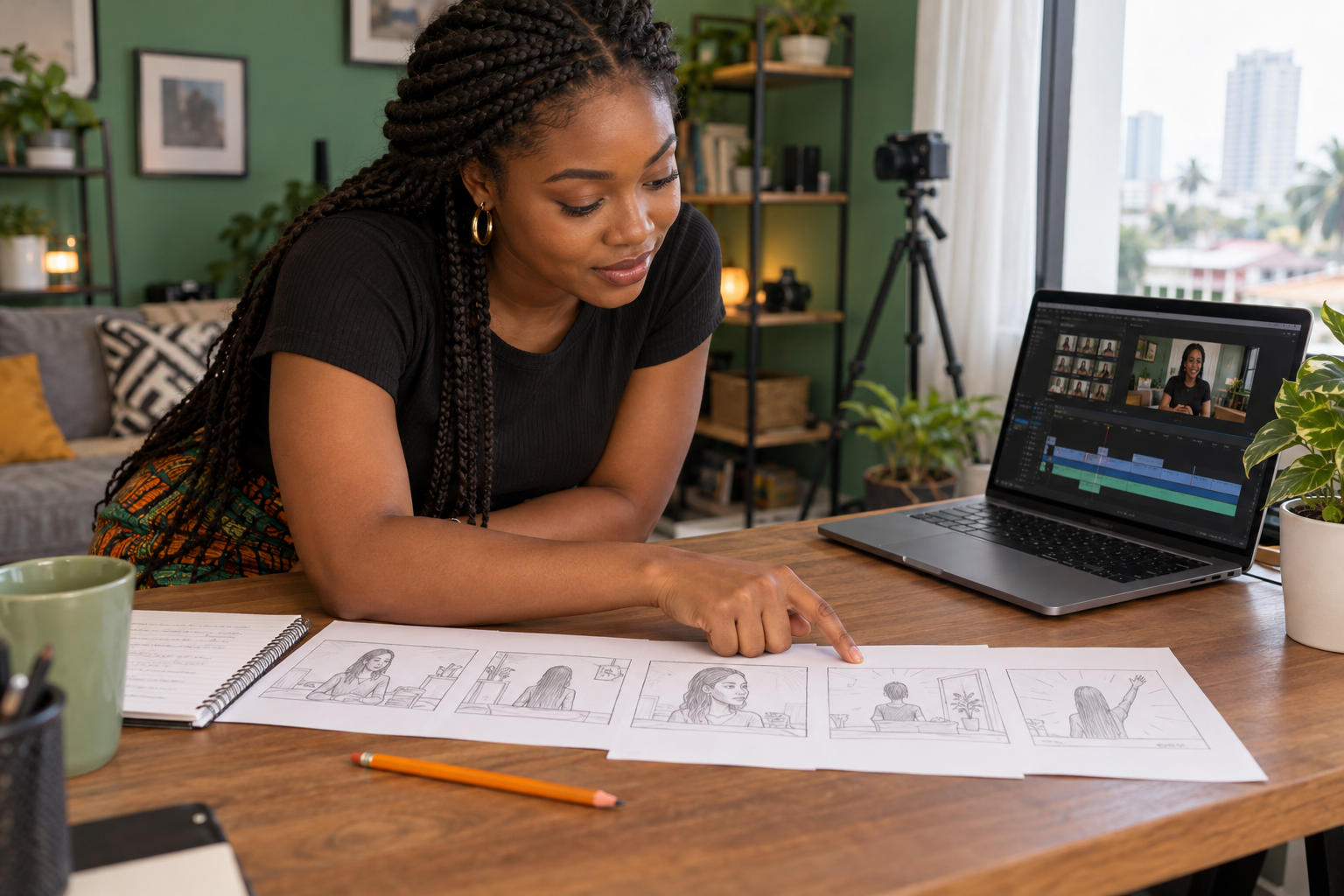
YouTube allows up to four elements on a standard 16:9 end screen, although other aspect ratios may allow fewer. Available choices include a video or playlist, a subscribe element, another channel and, for eligible YouTube Partner Programme channels, an external website link.
Four elements are a maximum, not a target. Two clear choices are often easier to understand than a crowded grid. A practical tutorial ending could contain:
- one specific next video or public playlist; and
- one subscribe element for viewers who want more lessons.
Use the “best for viewer” option only when you are comfortable allowing YouTube to choose. Use a specific video when the learning sequence matters. A public or unlisted playlist can work well when several lessons belong together.
Match the spoken close to the visible choice
The final sentence should point to the same action that appears on screen. “Watch the lighting lesson next” is stronger than “Check out more videos.” The viewer should know why the next item is useful before the element appears.
Record the close as part of the main performance. Leave a natural pause after the sentence so the end screen has time to work. Do not promise that the linked video will solve a problem it does not cover. Accurate recommendations build a more coherent channel.
Add the end screen in YouTube Studio
For an existing video, YouTube currently directs creators to open YouTube Studio, choose Content, select the video, open Editor and choose End screen. You can apply a template or add elements individually. Set the timing, drag elements into position, preview the result and save it.
Templates can speed up repeated layouts, but check each video. A template made for a centred presenter may cover a diagram in another lesson. Adjust the element positions to the actual composition instead of treating the template as finished design.
Design the background for real viewing conditions
Keep the final frame simple. Strong contrast between the presenter, background and empty element zones helps on smaller screens. Avoid tiny labels that compete with the clickable elements. If the video already has subtitles, make sure the closing sentence remains readable.
YouTube notes that viewers can hide end screens and that they may not always appear exactly as designed. They are also unavailable in some viewing contexts, including videos set as made for kids. The spoken ending should still make sense when no end-screen element is visible.
Preview every click path
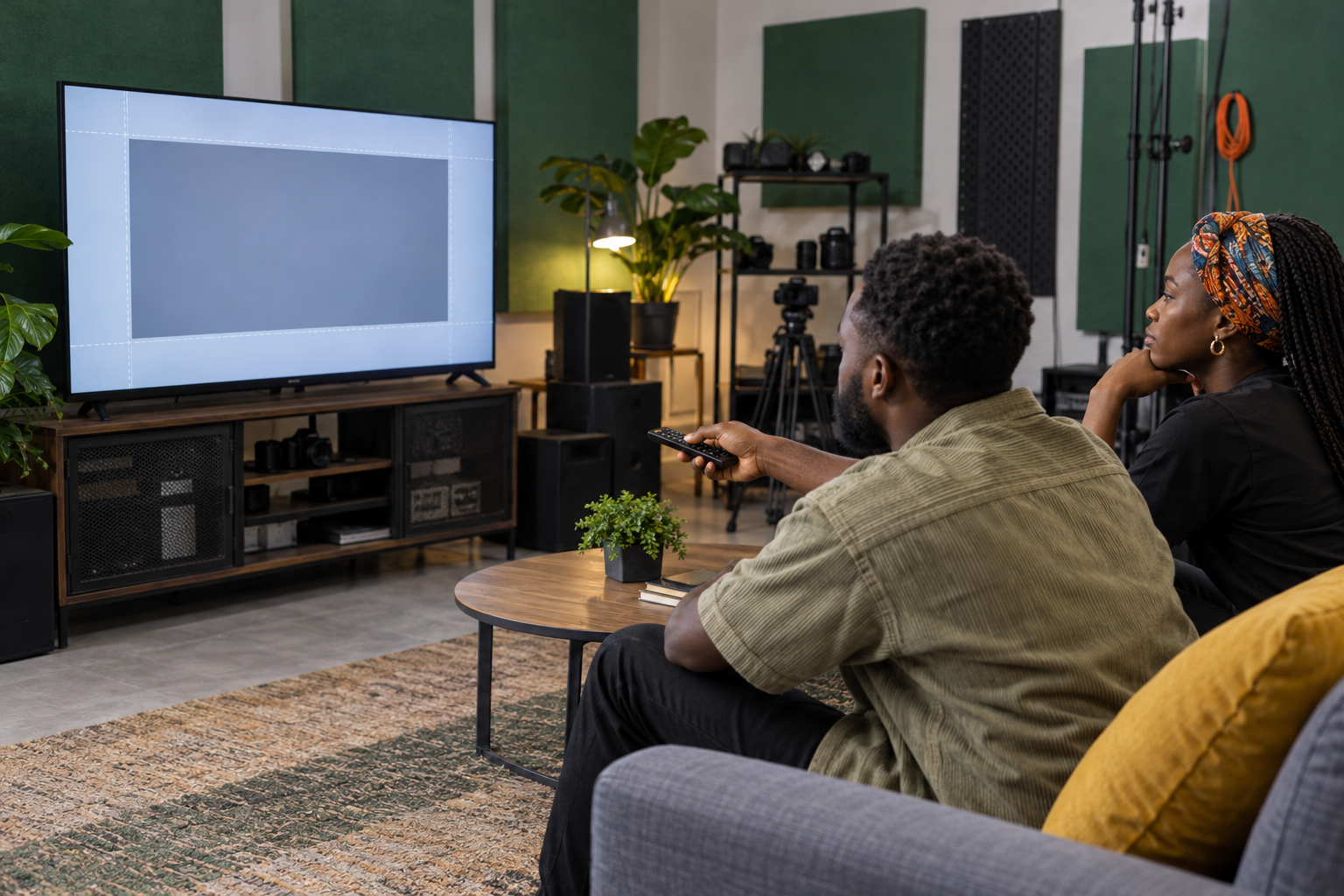
Play the final section inside YouTube Studio before saving. Confirm that each element appears at the intended moment and does not cover essential content. After the video is available, open its watch page and select each visible element. Check that the linked video or playlist is the one you intended.
Review the result on a phone and a larger screen. A layout that looks spacious on an editing monitor may feel crowded on mobile. Also watch the transition into the final 20 seconds. If it feels abrupt, improve the edit rather than adding more decoration.
Read end-screen results as a navigation signal
YouTube says the Engagement section of Analytics includes end-screen element click rate. Use it to see whether viewers selected the elements that appeared. Compare similar tutorials with similar endings rather than treating one percentage as a universal benchmark.
A low click rate can have several causes. The recommended lesson may be irrelevant, the spoken close may be vague, or viewers may leave before the elements appear. Inspect the video itself before changing the layout. A high click rate shows that an element was selected, not that the next video produced a sale or a loyal subscriber.
Keep promotion separate from the viewing path
An end screen organises what happens after a viewer reaches the end. It does not create the first view. If you later consider paid visibility, review the current Cloutingo service catalogue and match any listing to the exact video type and metric you need. Individual services differ in audience and conditions.
Purchased views do not guarantee end-screen clicks, watch time, recommendations or subscriptions. Read the current Cloutingo terms and the individual service description before ordering. If a verified option fits your plan, you can create an account after the content and viewing path are ready.
Fix one ending this week
Choose one tutorial that already leads naturally to another lesson. Rewrite its final sentence, reserve a clean closing frame and add one relevant video or playlist element. Test the published result. A good end screen feels less like a menu and more like a helpful continuation of the lesson.