
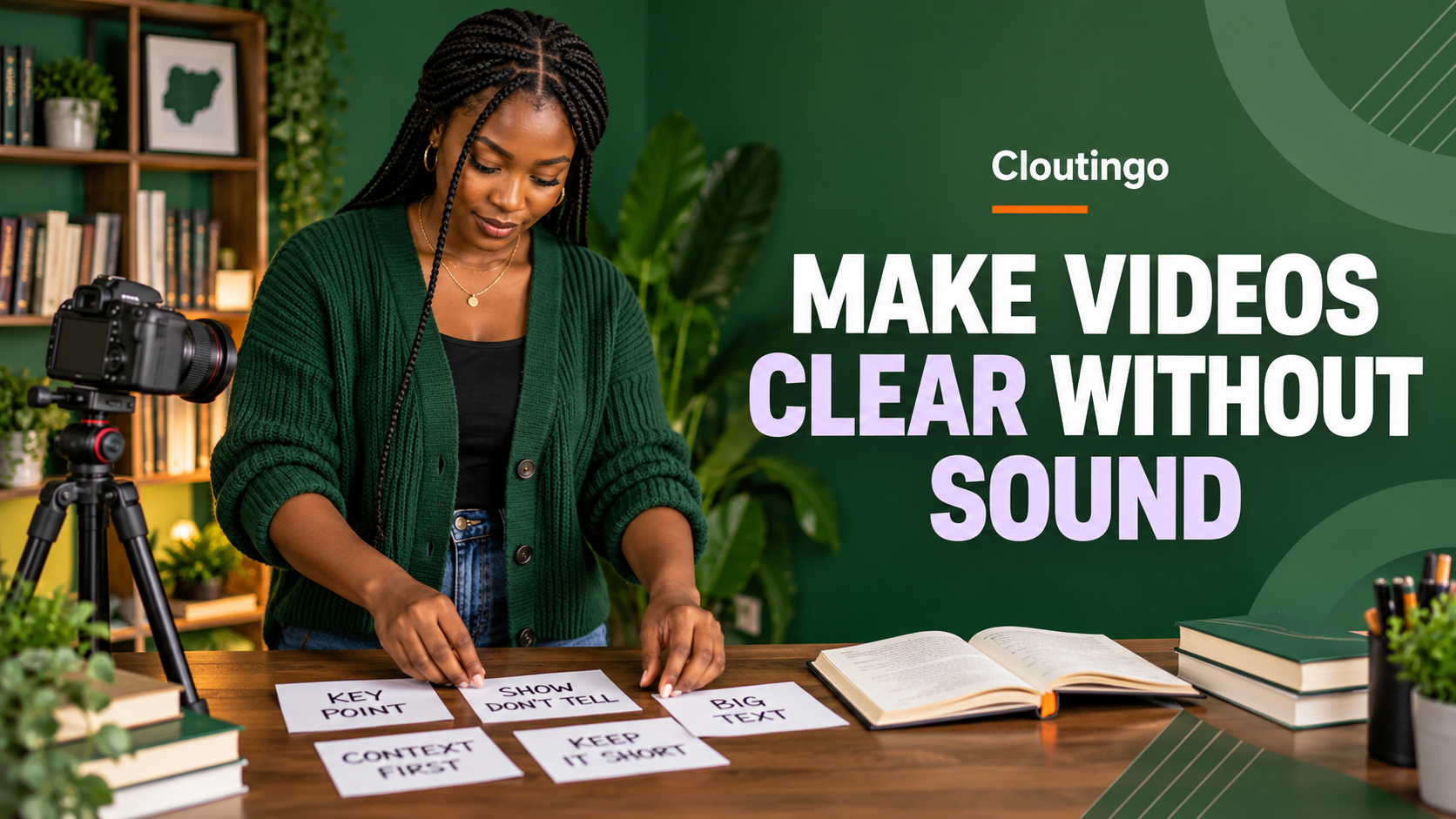
How to Make Short Videos Clear Without Sound
To make a short video understandable without sound, put the essential meaning on screen, use accurate captions for speech and show important actions clearly. A viewer should still grasp the subject, sequence and next step when the device is muted. Sound can add personality, but it should not carry the whole explanation.
This approach also supports viewers who are Deaf or hard of hearing, people in noisy places and anyone who processes written information more easily than audio. It begins before filming, not after the edit is finished.
Write a silent-viewing statement first
Before recording, complete this sentence: “With the sound off, the viewer should understand that ______.” Keep the answer narrow.
For a Nigerian book reviewer, the statement might be: “This novel follows two sisters rebuilding trust after a family dispute, and it suits readers who enjoy character-led stories.” That sentence defines the information the visuals and captions must carry. It is more useful than starting with camera effects.
Break the statement into three visible beats:
- Context: identify the book and the kind of story.
- Evidence: show the reviewer explaining one specific strength without revealing a spoiler.
- Action: tell the viewer what to do next, such as read the full review or share their opinion.
Use captions for meaning, not decoration
Captions are synchronized text for speech and meaningful audio. The World Wide Web Consortium explains that captions serve people who are Deaf or hard of hearing and should include speech plus non-speech audio needed to understand the content. Its caption guidance also distinguishes closed captions, which viewers can turn on or off, from open captions that are always visible.
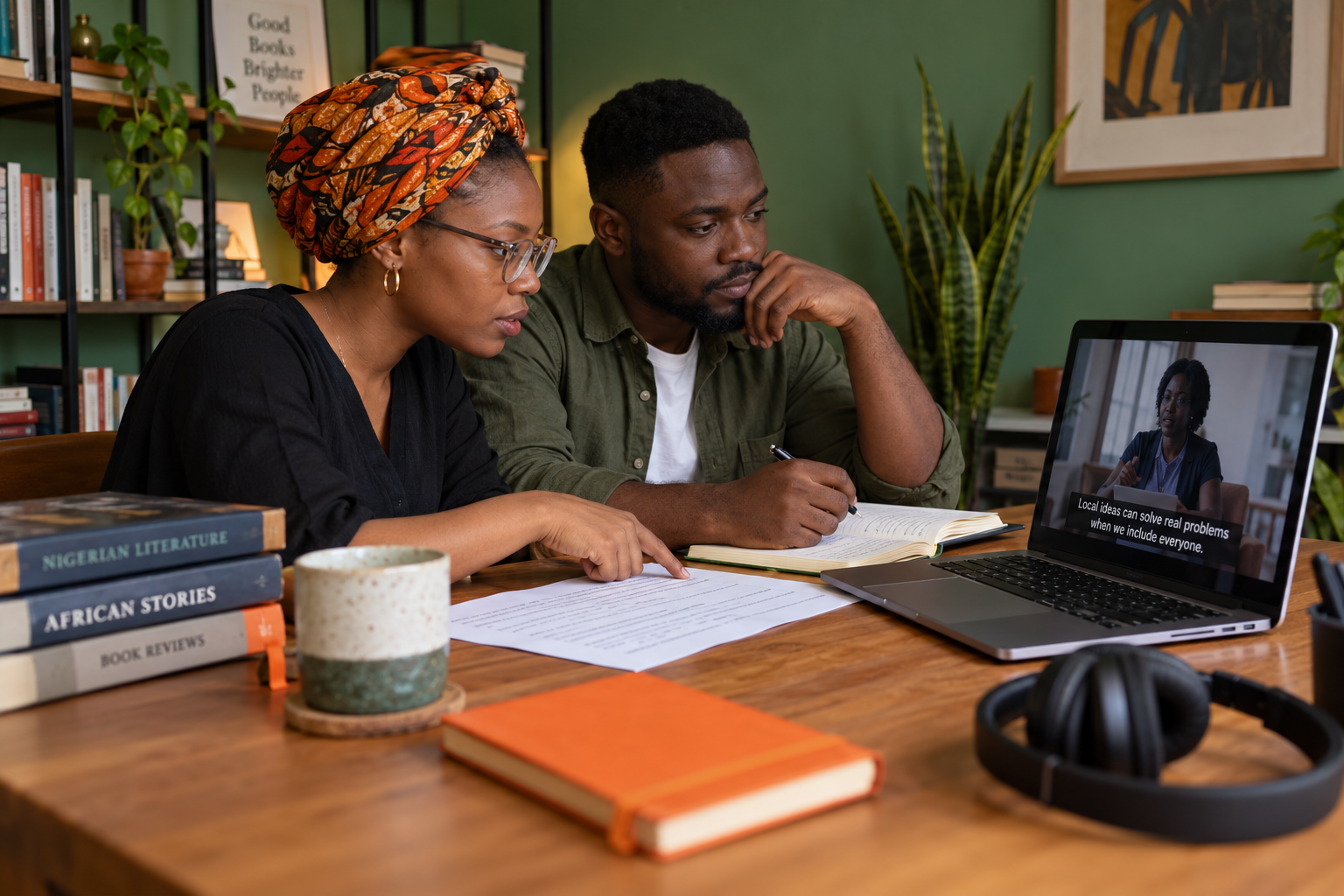
Write captions from the actual final audio. Include useful sound information, such as “[door closes]” or “[applause]”, only when it changes the meaning. Do not fill the screen with every pause or repeated word if removing it does not alter what the speaker means.
Keep each caption long enough to read. Break a sentence at a natural phrase, not in the middle of a name or idea. Place the text where it does not cover the speaker's mouth, a demonstration or another essential visual.
Do not trust automatic captions without review
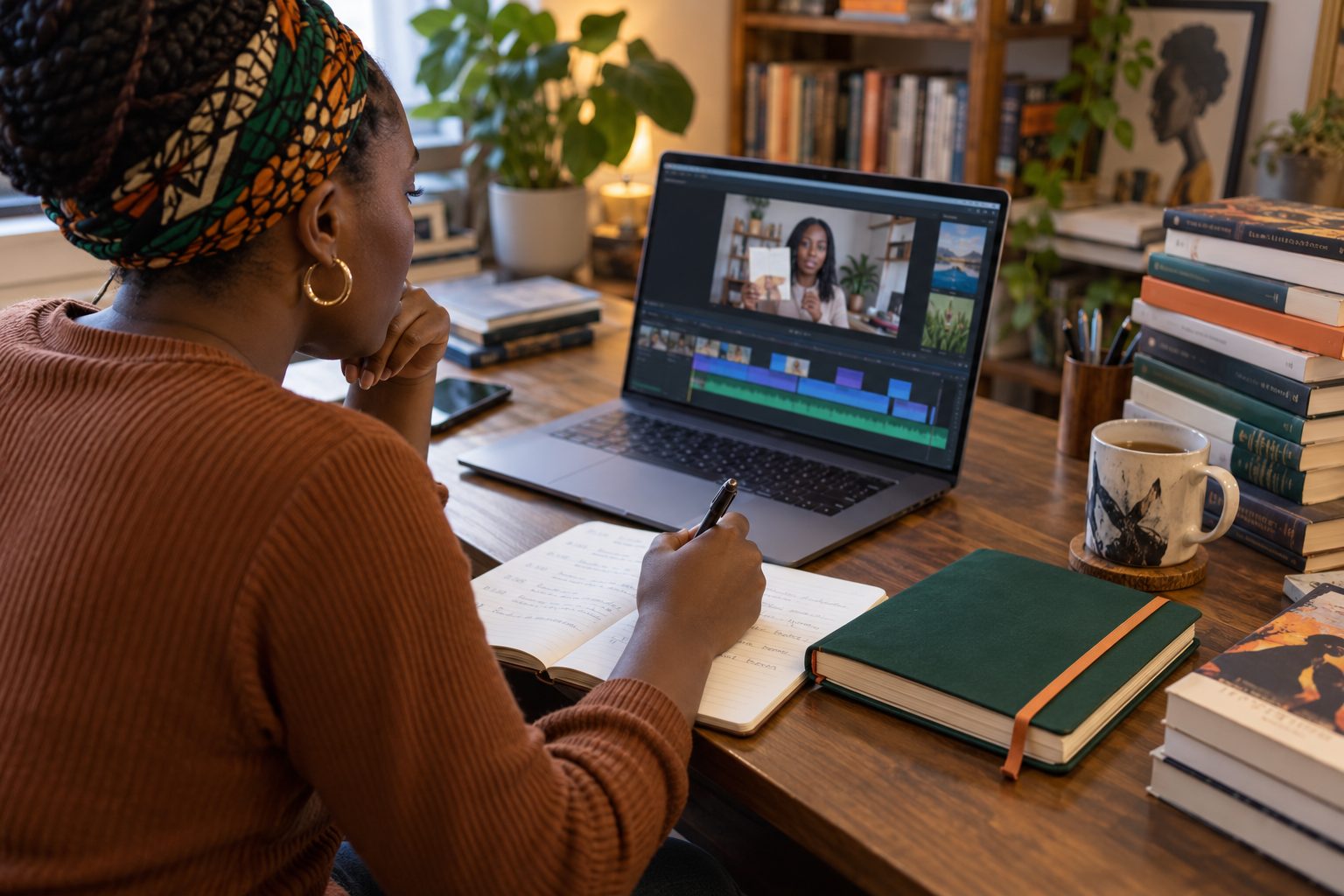
Automatic captions are a useful starting point, not a finished transcript. YouTube states that automatic caption quality can vary and may misrepresent speech because of accents, dialects, pronunciation or background noise. It advises creators to review and edit the text. TikTok also documents auto-generated captions and creator captions in its current video accessibility guidance.
Review names, Nigerian place names, product terms and code-switching carefully. A speech tool may guess an unfamiliar word confidently. Listen to each line, correct the spelling and confirm that the timing matches the voice.
On YouTube, creators can add captions with a file, auto-sync a transcript or type them manually. The current steps are in YouTube's caption instructions. Use the platform's current workflow because menus can change.
Make the picture carry the action
Captions explain speech, but they cannot repair a video whose key action is invisible. If the speaker says, “Use the second setting,” show the control or name the setting on screen. If the reviewer compares two editions, place them side by side. If an object changes, show the before and after states in sequence rather than relying on narration.
Use brief on-screen labels for facts the viewer may need to retain. A book title, event date or three-word step can be useful. A full paragraph usually asks too much of a small screen. The spoken explanation, captions and on-screen labels should cooperate instead of repeating the same sentence three times.
Design text for a small phone screen
Readable text needs contrast, space and restraint. Test the real export on a phone rather than judging only from a large editing monitor.
- Use a simple typeface with clear letter shapes.
- Place light text on a dark solid or translucent background when the footage is busy.
- Keep important text away from the extreme edges where platform controls or crops may cover it.
- Use sentence case for longer phrases. Large blocks of capitals are harder to scan.
- Give the viewer enough time to read before changing the line.
Do not use colour alone to explain meaning. If green means “recommended” and orange means “optional”, add words or symbols that communicate the distinction too.
Give visual information an audio route too
Silent viewing is one side of accessibility. A person who cannot see the screen may need important visual information spoken aloud or supplied in a descriptive transcript. The W3C describes a descriptive transcript as text that includes both the necessary audio and the important visual information.
If a chart, gesture or object is essential, name it in the narration: “The highlighted sentence changes from present tense to past tense.” This makes the explanation less dependent on sight. It also produces clearer audio for viewers who glance away from the screen.
Run a two-pass quality check
First, watch the exported video with the sound completely off. Write down any moment where the meaning disappears. Do not mentally fill gaps from the script you already know. Ask another person to describe what they understood.
Second, listen without watching. Check whether essential visual information is described. Then play the full video and compare every caption with the audio. This separates three different problems: missing visual meaning, missing spoken context and inaccurate caption text.
Promote only the accessible version
Cloutingo's current service catalogue includes video-view categories for several platforms. Promotion can support distribution of a finished clip, but it does not add captions, repair unreadable text or make a confusing demonstration understandable.
Export the corrected version before using any promotion service. If you replace or remove a video after submitting its link, delivery may be affected, so review the exact listing and current terms first. For YouTube-specific performance review after publication, our guide to YouTube Shorts analytics explains how to inspect the teaching or explanation itself.
Build clarity into the next recording
The most efficient accessibility work happens at the script and storyboard stage. Decide what silent viewers must understand, show the key actions, caption the final speech accurately and review the export in more than one mode. That produces a video that is easier to follow before any promotion begins.
Start with one unpublished short video. Watch it muted, mark every lost idea and revise those moments. When the accessible final file is live and the campaign has a clear purpose, you can compare the current video options on Cloutingo and create an account if a listing fits the exact link and audience.